Make any image square without cropping
Your whole photo, perfectly framed. Add a soft blur, pick a background color, or crop to a clean 1:1 square. Free, private, and ready in seconds.
A little less rectangle.
A lot more possibility.
Drop your image here to get started
JPG, PNG, WebP, GIF, AVIF or BMP · Up to 25 MB · Batch up to 12
Your photos stay on your device. Always.
How to make an image square online
Choose an image to make square
Select a JPG, PNG, or WebP, drag a photo into the editor, or paste one from your clipboard.
Find your square fit without cropping
Keep every detail with Blur or Color, stretch with Resize, or compose a precise square crop.
Download your square image for free
Choose the output size and format, check the live preview, and download a clean image without a watermark.
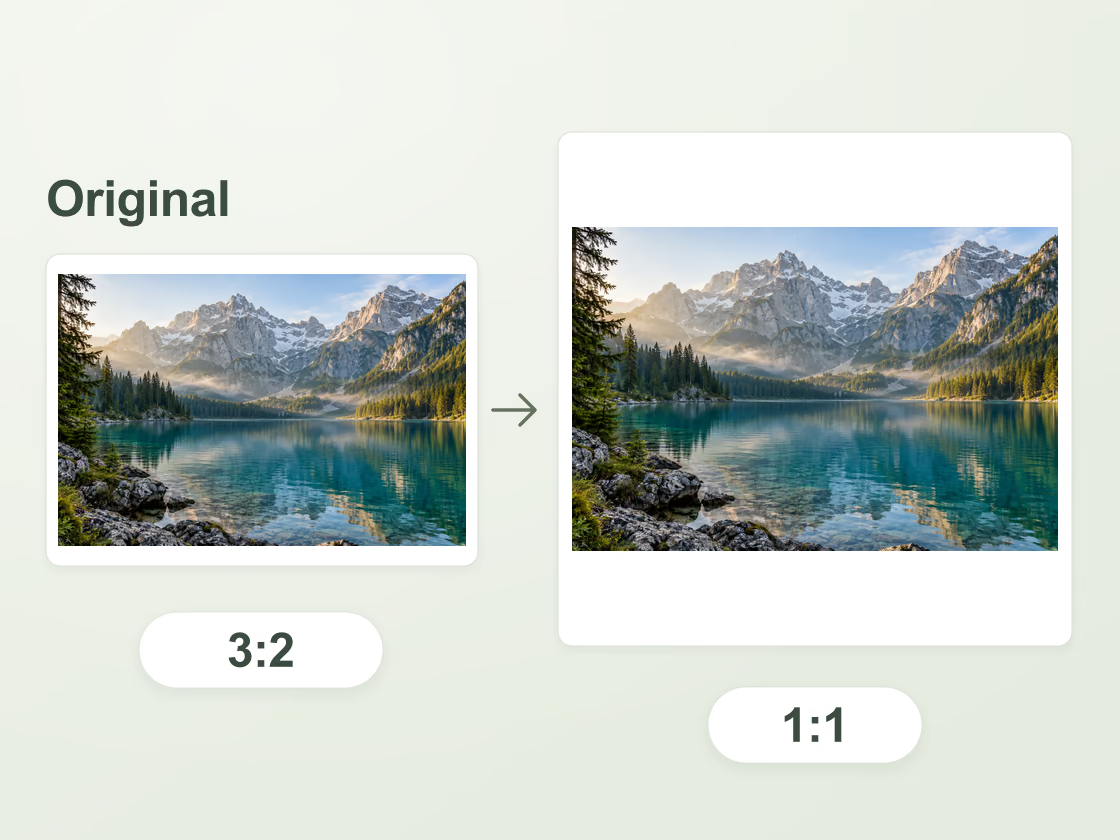
Make a photo square without cropping or stretching
Keep the mountain peaks, the people at the edges, and everything else you meant to capture. Blur and Color fit your full photo inside a 1:1 canvas at the default zoom, adding space along the shorter sides while preserving the original proportions.
- Fit portrait and landscape photos
- Keep every edge with the default fit
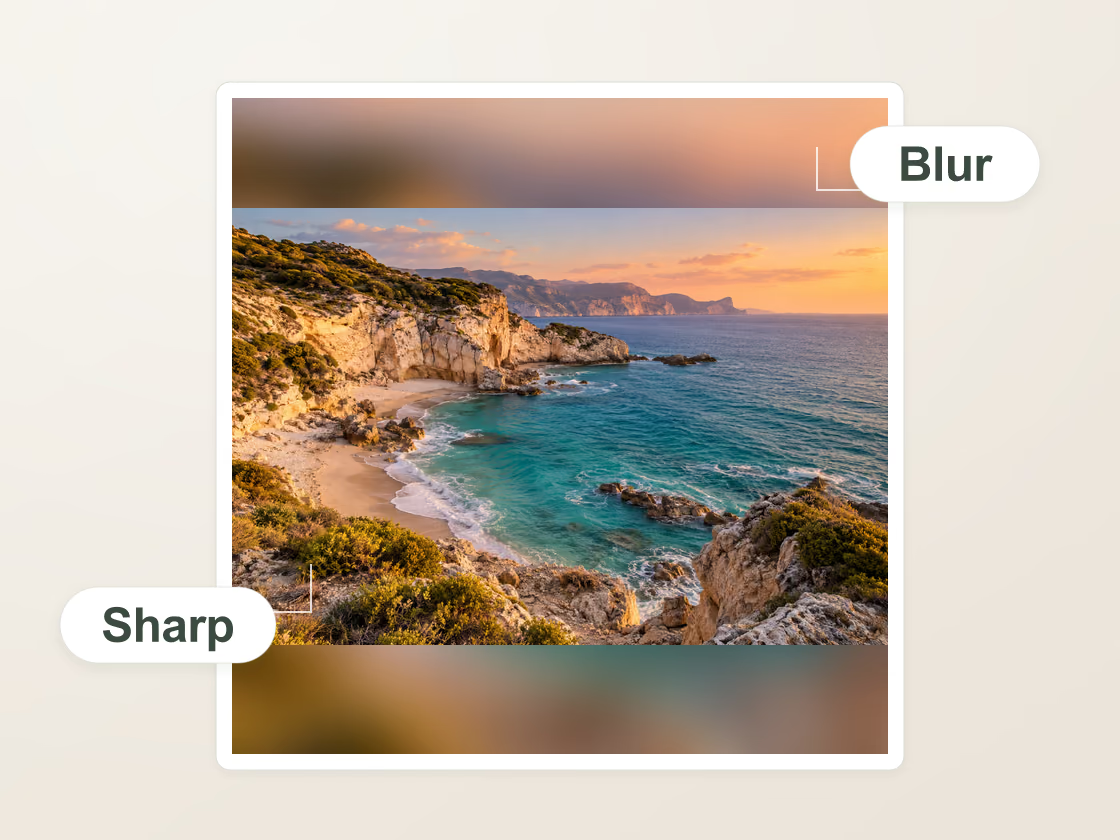
Add a blurred background to a square photo online
Give a travel photo or portrait a frame made from its own colors. A soft, enlarged copy fills the background while your main photo stays sharp. Adjust the background blur in the preview, or open Blurred Frame for more control over the frame and image scale.
- Control how soft the background looks
- Match the frame to your photo’s colors
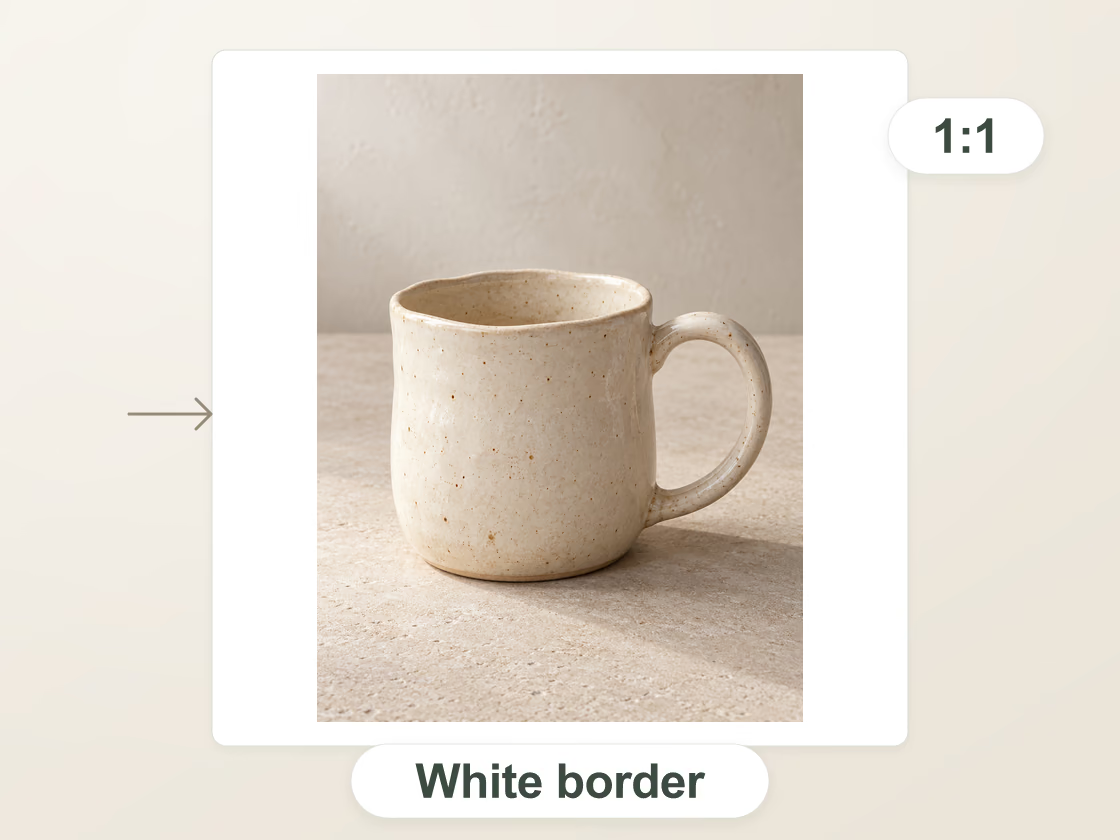
Make square product photos with a white border
Give a shop or catalog a consistent set of square thumbnails. Choose Color and set the padding to white, or pick a shade that suits your brand. The extra space keeps tall and wide items inside the frame. Padding surrounds your existing image; the background within the original photo stays as it is.
- Add white or custom-color padding
- Keep product proportions intact
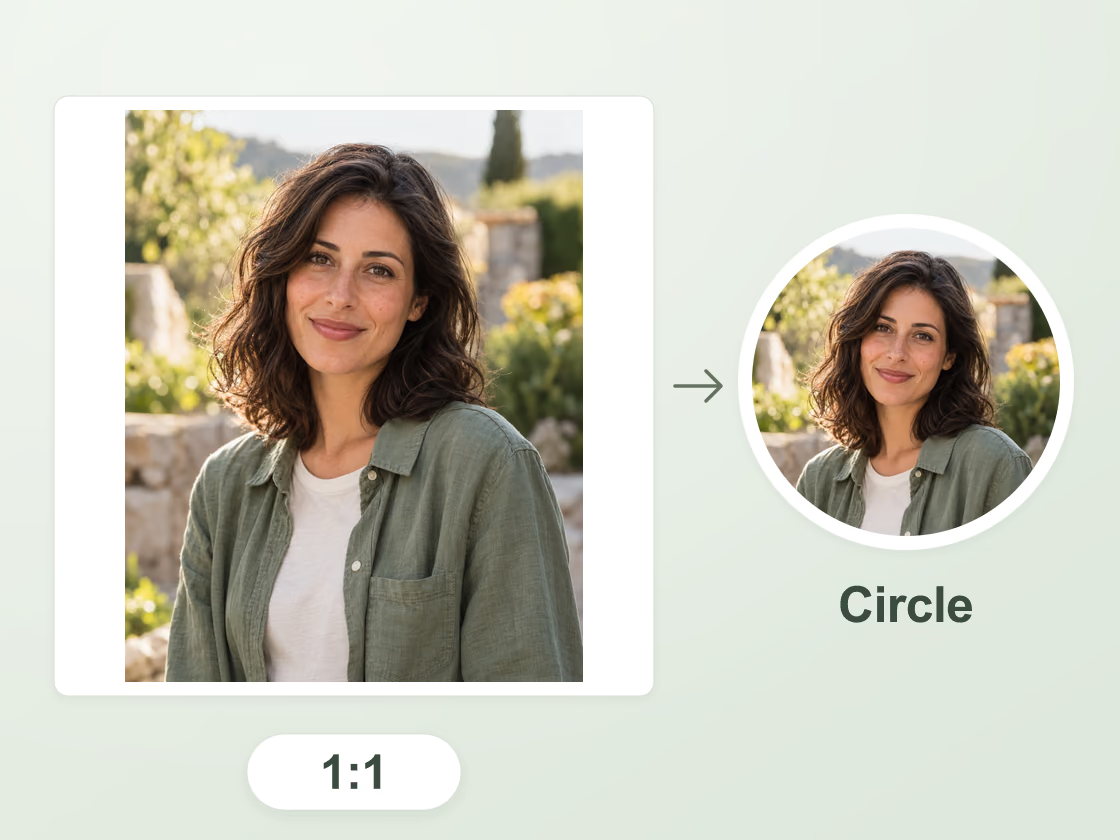
Make a square profile picture without cropping
Keep a full portrait or logo visible with a blurred or solid-color background. Leave some space around the subject so faces and text remain clear at thumbnail size. For a circular avatar preview and more background choices, continue with the Full DP tool.
- Center a portrait or logo with breathing room
- Preview a circular avatar in Full DP
Batch convert images to square online for free
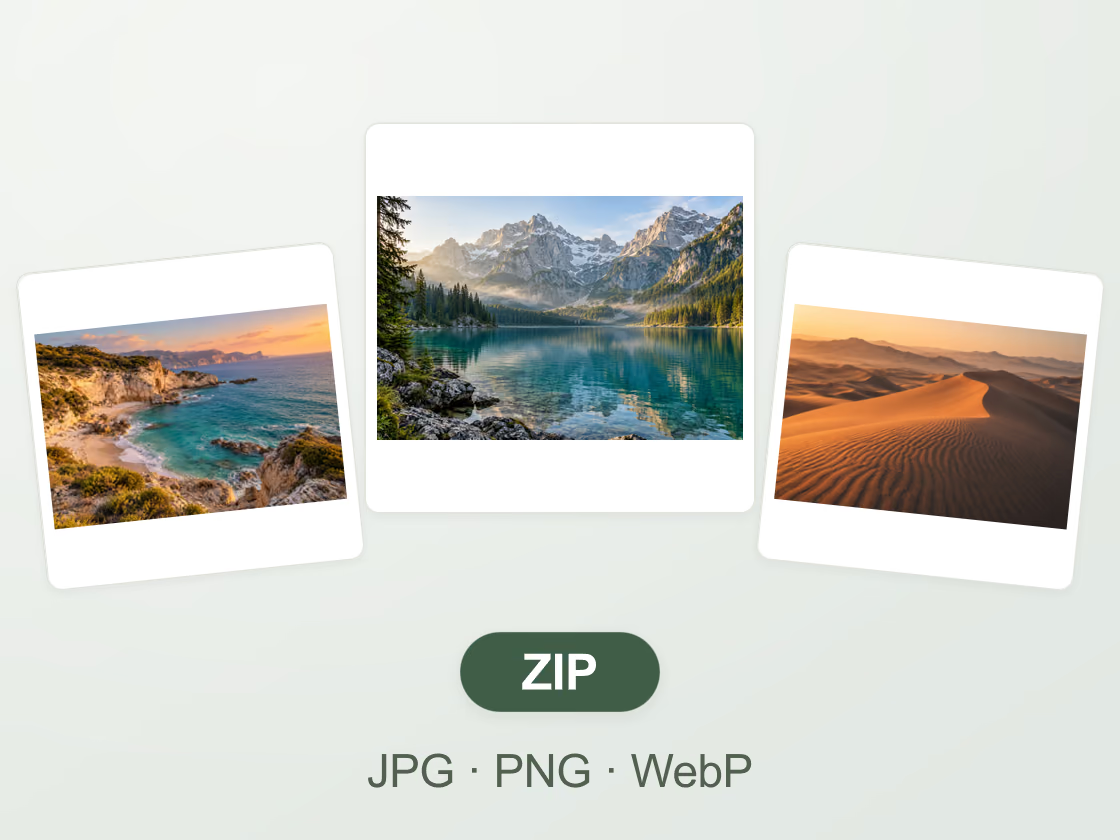
Preparing a collection of photos? Add up to 12 images and use the same background, square size, and export format across the batch. Save the results together in a ZIP, with JPG, PNG, or WebP files inside. Your photos are processed on your device, with no sign-up or added watermark.
- Export up to 12 square images in one ZIP
- Choose JPG, PNG, or WebP downloads
More free square image tools
Add a blurred frame around your photo online.
Square CropCrop a photo to a perfect 1:1 square online.
Rounded CornersAdd rounded corners to an image online.
Instagram GridSplit a photo into numbered square or portrait grid tiles.
Full DPFit your full photo into a square profile picture without cropping.
Drawing GridAdd a drawing grid to a photo online.
Solid ColorsCreate a solid color background in any size.
Resize ImageResize an image to custom pixel dimensions in your browser.
Compress ImageAdjust image quality and format to reduce photo file size.
Choose a square image size and format
A practical guide to getting the most from your square image maker.
Choose a square image size for social media
These convenient export presets give you a starting point. Check the destination’s current requirements before publishing.
| Use case | Square size | Export tip |
|---|---|---|
| Social feed post | 1080 × 1080 px | JPEG for photos |
| Profile picture | 512 × 512 px | Keep the subject centered |
| Product thumbnail | 1200 × 1200 px | White or transparent padding |
| High-resolution artwork | 2048 × 2048 px | PNG for crisp edges |
Square Image online: frequently asked questions
How do I make an image square without cropping?
Choose Blur or Color and leave zoom at its default. The complete photo fits inside a square, with the extra space filled by a blurred copy or your selected color.
What is the difference between square crop and resize?
Crop preserves proportions and removes content beyond the square frame. Resize stretches the whole source to 1:1, which can change the shape of objects. Blur and Color preserve proportions while adding background space.
Can I make a 1080 × 1080 square image?
Yes. Select the 1080 px preset before downloading. Width and height are both 1080 pixels for a square export.
Are my pictures uploaded or watermarked?
Your photo is processed locally in your browser. Exports have no added watermark, and the original file is unchanged.
Which image format should I download?
Choose JPG for typical photos, PNG for graphics or transparency, and WebP when your destination supports it. JPG flattens transparent areas onto a background.